Android Integration - Getting started
A full working example app is available on this repository. Run the MapActivity to see Nextome Sdk in action. It also contains a seamless outdoor/indoor map integration using OpenStreetMap for outdoor and Nextome Flutter Map for indoor.
Prerequisites
- Your project has min SDK version >= 24;
- Have working credentials for our artifactory repository;
- Have working credentials for our frontend portal;
Credentials
If you need access to artifactory or web frontend, contact us at info@nextome.com.
Retreive Client and Secret Key
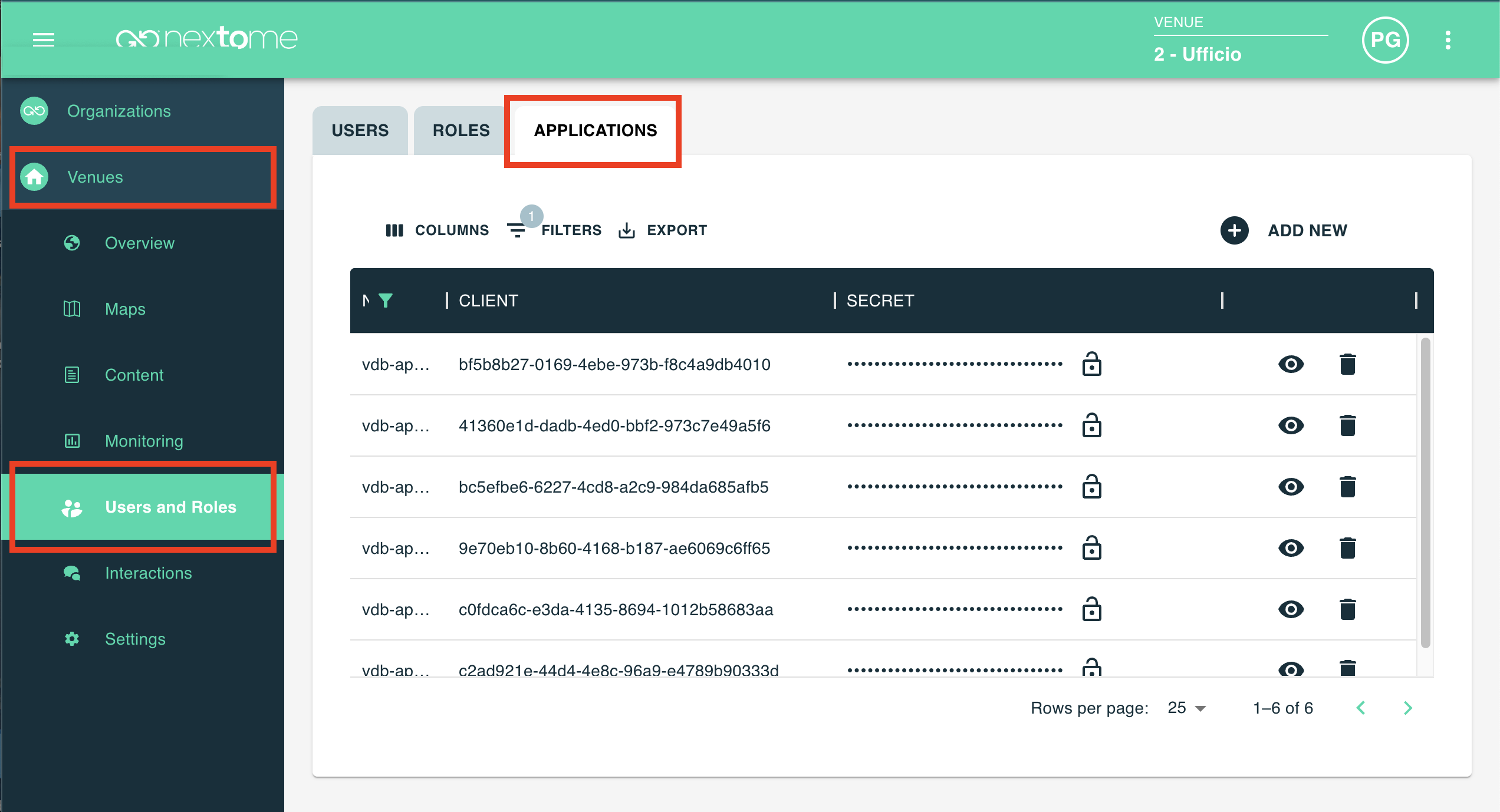
Log-in the web dashboard and retrieve the Client and Secret Key for the SDK.
Those credentials are available from choosen Venue, Users and Roles at the Applications section.
How to include
-
Add our repositories in the Gradle Project Settings
settings.gradle.kts:settings.gradle.ktsdependencyResolutionManagement { repositoriesMode.set(RepositoriesMode.FAIL_ON_PROJECT_REPOS) repositories { ... google() mavenCentral() maven { url = uri("https://packages.nextome.dev/artifactory/nextome-libs-prod/") credentials { username = "USERNAME" password = "PASSWORD" } } } } -
In your module (app-level) Gradle file, add the dependency for the SDK:
Check latest released version here
Required permissions
To run, Nextome SDK requires the following permissions:
    <uses-permission android:name="android.permission.INTERNET" />
    <uses-permission android:name="android.permission.POST_NOTIFICATIONS"/>
    <uses-permission android:name="android.permission.ACCESS_NETWORK_STATE" />

    <!-- needed to retrieve GPS position when outdoor -->
    <uses-permission android:name="android.permission.ACCESS_FINE_LOCATION" />
    <uses-permission android:name="android.permission.ACCESS_COARSE_LOCATION" />

    <!-- needed to scan and connect to beacons -->
    <uses-permission android:name="android.permission.BLUETOOTH"
                     android:maxSdkVersion="30" />
    <uses-permission android:name="android.permission.BLUETOOTH_ADMIN"
                     android:maxSdkVersion="30" />

    <uses-permission android:name="android.permission.BLUETOOTH_SCAN" />
    <uses-permission android:name="android.permission.BLUETOOTH_CONNECT" />
    <uses-permission android:name="android.permission.BLUETOOTH_ADVERTISE" />

    <!-- needed for background localization -->
    <uses-permission android:name="android.permission.ACCESS_BACKGROUND_LOCATION" />
    <uses-permission android:name="android.permission.FOREGROUND_SERVICE" />
Note
The app integrating Nextome needs to ask the appropriate permissions and make sure they are accepted by the user.
SDK Initialization and authentication
It is possible to access all the methods of Nextome using the class NextomeLocalizationSdk.
The SDK supports two authentication modes.
ClientSecretCredentials
This is the recommended option when you use the Nextome infrastructure. In this case, authentication is performed using the Client ID and the Secret Key provided by Nextome.
It requires the given Client and Secret Key.
Note
It is possible to generate or invalidate a given Client and Secret Key using our web frontend.
val nextomeSdk = NextomeLocalizationSdk(
    credentials = ClientSecretCredentials(
        clientId = CLIENT_ID,
        clientSecret = CLIENT_SECRET
    ),
    baseUrl = null
)
When baseUrl is left to null, the SDK uses the default Nextome infrastructure.
TokenCredentials
This option is intended for integrations that use a custom infrastructure and a custom identity provider. In this case, authentication is performed directly through a token.
val nextomeSdk = NextomeLocalizationSdk(
    credentials = TokenCredentials(
        token = ACCESS_TOKEN
    ),
    baseUrl = "https://your-own-infrastructure.com"
)
When using TokenCredentials, the SDK does not manage token refresh automatically. The token refresh flow must be handled by the integrator and by the host application. When the token expires or network calls are no longer authenticated, the application must obtain a new token and notify the SDK through:
Which credentials should I use? In general, ClientSecretCredentials should be used when the application relies on the Nextome infrastructure. This is the simplest and recommended setup.
TokenCredentials should be used when the application has its own infrastructure and its own identity provider. In this scenario, the SDK can be pointed to the custom backend through baseUrl, and authentication is handled through access tokens generated by the host system.
Notes If baseUrl is null, the SDK uses the Nextome infrastructure. If you use TokenCredentials, token renewal is not handled by the SDK. The host application is responsible for obtaining a new token and passing it to the SDK with assignNewToken(newToken: String).
Warning
By default the SDK works with settings defined on the web frontend.
If you know what you are doing, you can override those settings as described here.
However, we strongly suggest to consult Nextome team before, since they can
degrade sdk performances and cause phone battery drain.
Usage rules permissions
To be localized, the application associated with the client_id entered during initialization must have CORE permissions. These permissions are:
- At least Read permission on the Venues resource
- At least Read permission on the Maps resource
- At least Read permission on the Beacons resource
- At least Read permission on the BeaconModels resource
If the core permission are not granted, the SDK will not works. Check the role type assigned to the user on the Nextome Hub.
- At least Read permission on the Settgins resource
This permission is not intended to be as core permissions, so no error is fired but it is recommanded to fetching the venue settings correctly. For example, if you don't see realtime position on Hub Web, but the settings is setted on TRUE, maybe the account associated roles haven't READ on Settings resource.
Next steps
- See Start Localization to use Nextome SDK.
Examples
A full working example app is available on this repository.
Run the MapActivity to see Nextome Sdk in action. It also contains a seamless outdoor/indoor map integration using OpenStreetMap for outdoor and Nextome Flutter Map for indoor.
© 2026 Nextome srl | All Rights Reserved.